
Layout Settings
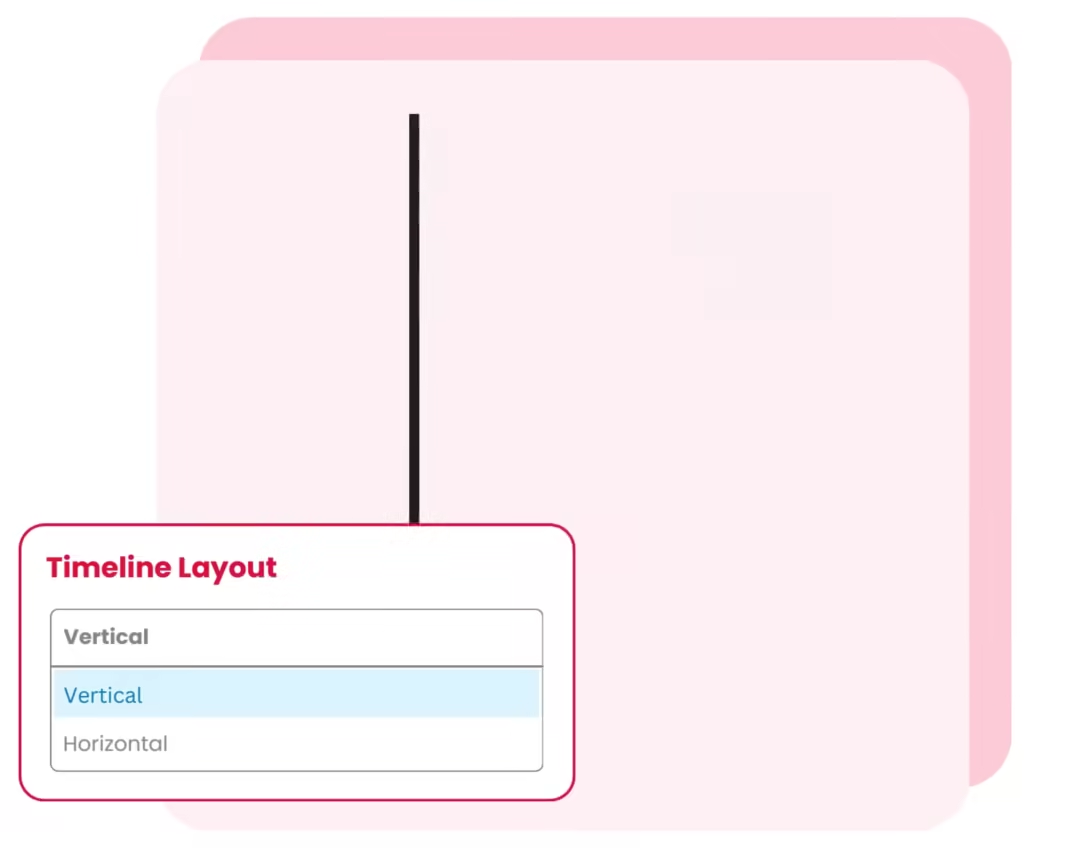
Choose between Horizontal and Vertical (one-sided or both-sided) timeline layouts to display your stories.
Media Setting
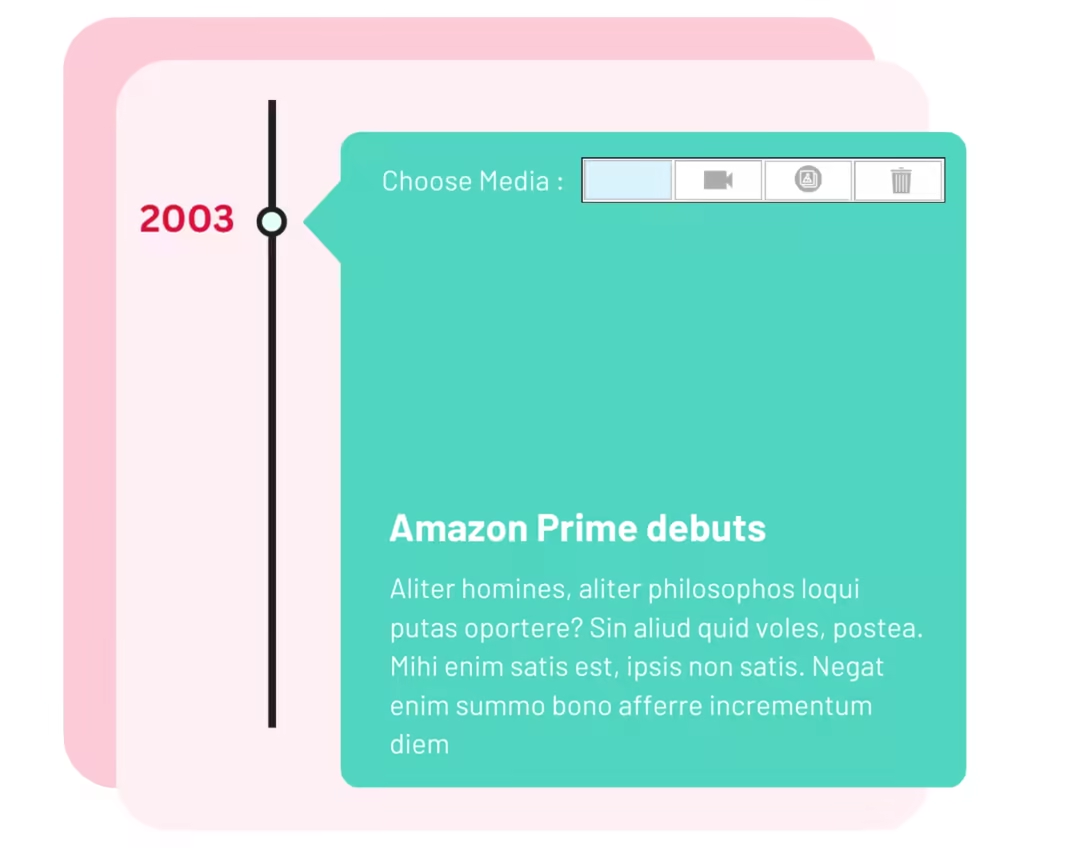
Add images, youtube videos and slideshows to your timelines.
Connector Style
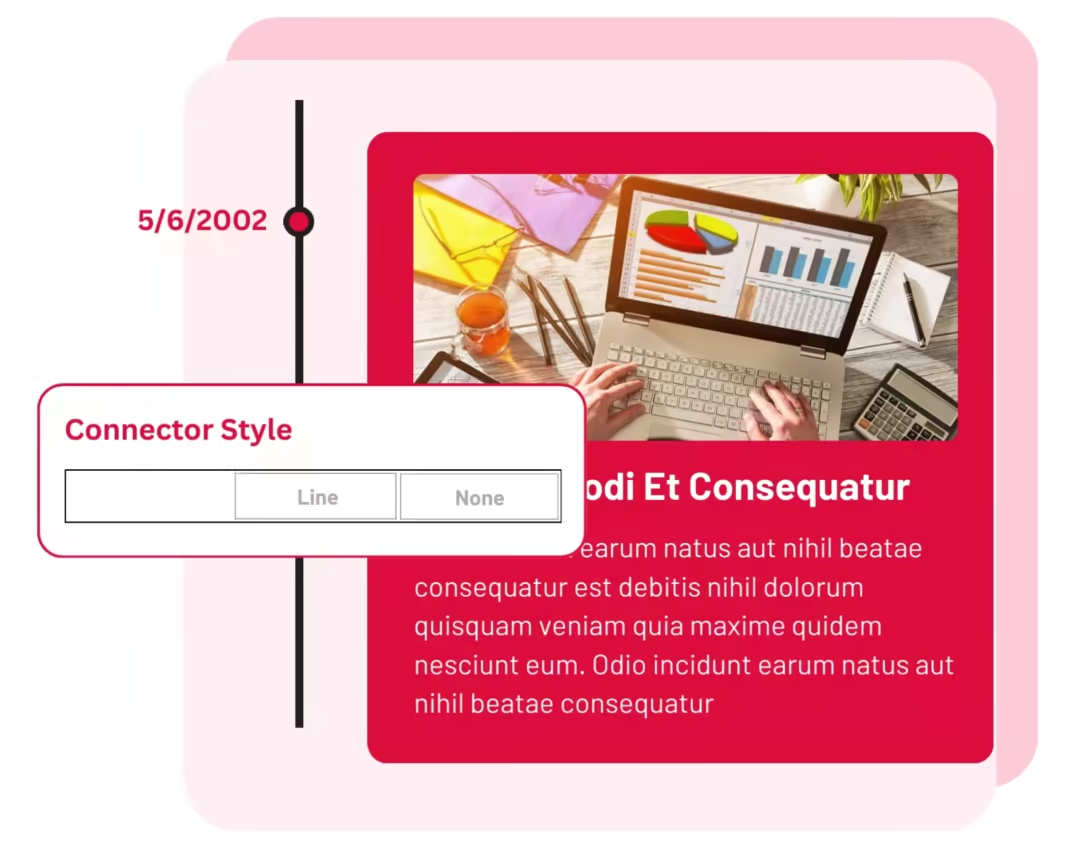
Choose how your timeline elements should be connected - Arrow, Line, or None.
Move Element Position
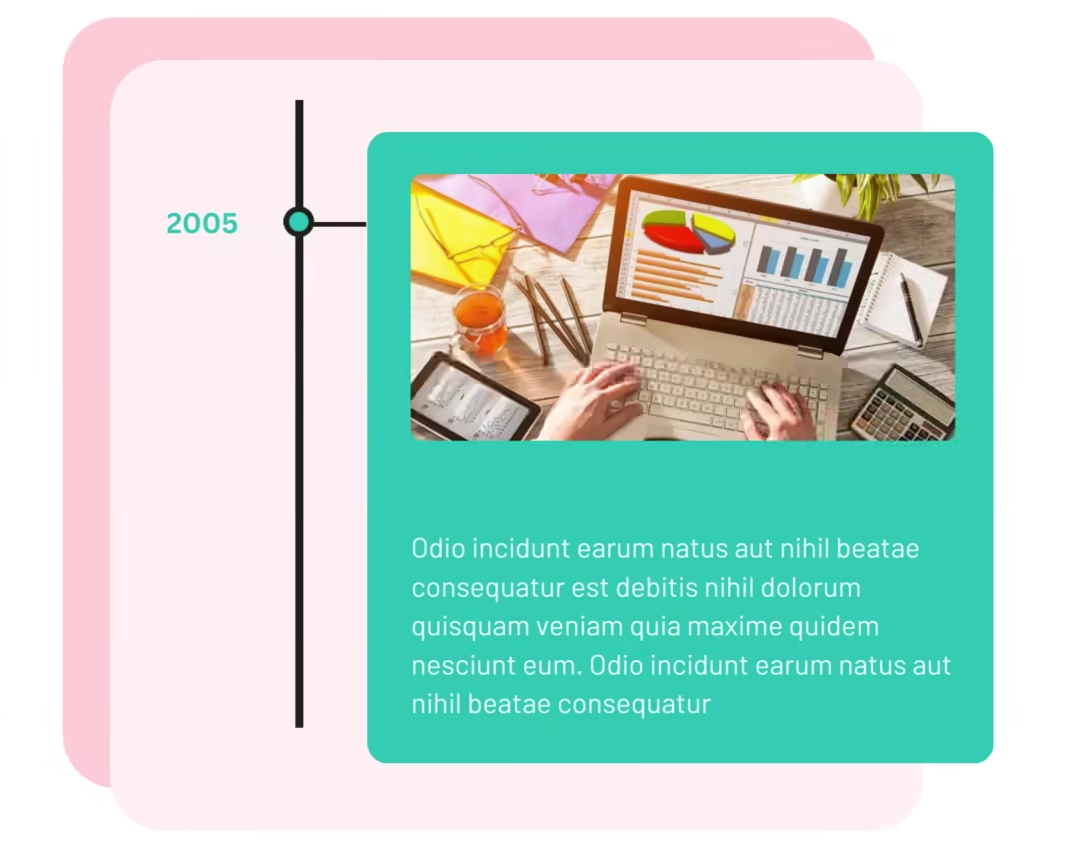
Easily rearrange your story content using the up and down arrows.
Year Label & Scrolling Navigation
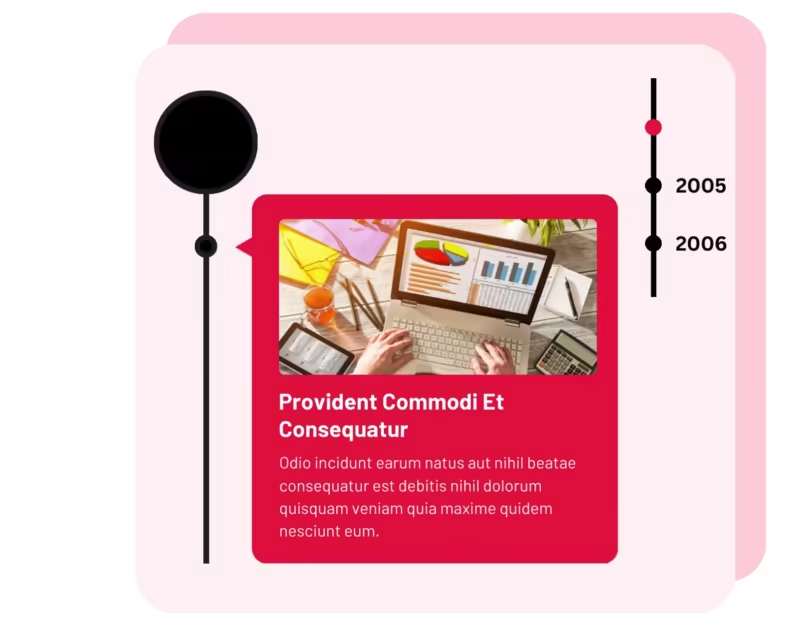
Add personalized text labels to display important details like dates, years, event names, or step numbers.
Story Icon
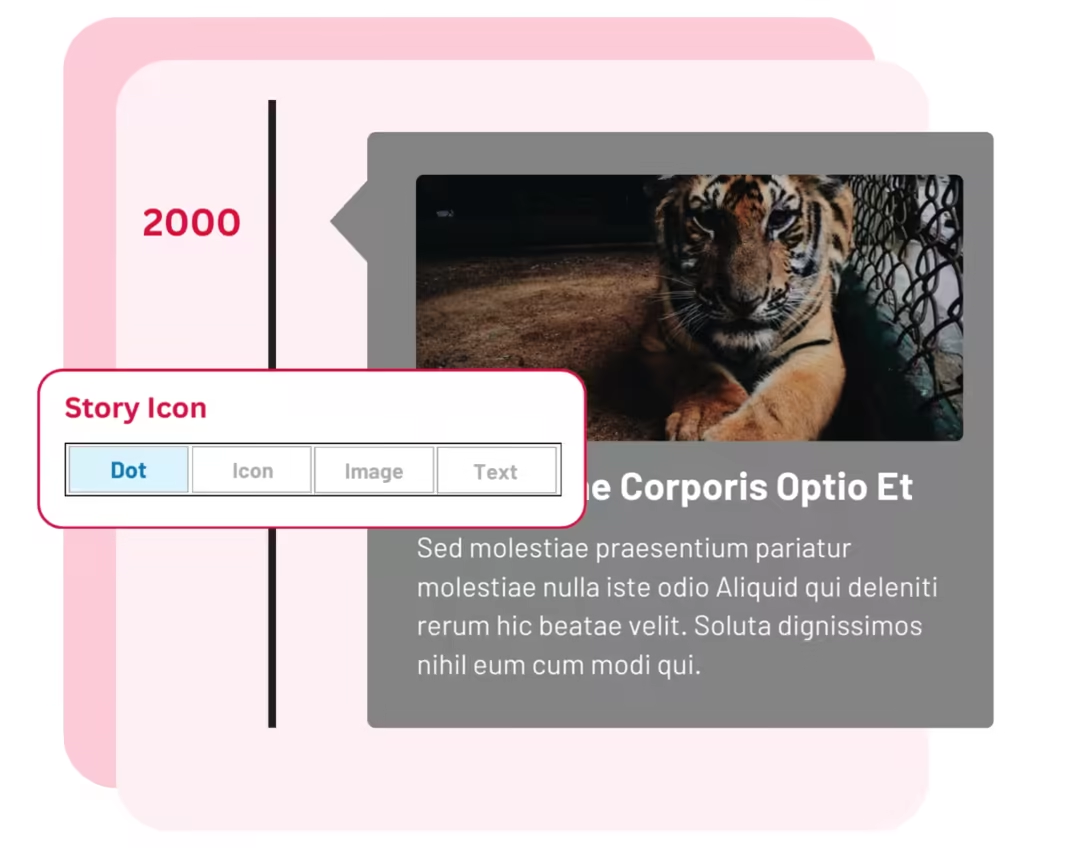
Customize your timeline stories using Dot, Icon, Image, or Text.
Annual License
For 1 Website • 1 Year Plugin Updates
25% OFF
$25
$19
/ year
Extra discount available —
- Use on 1 website
- 1 year of plugin updates
- 1 year of premium support
Best Value
Lifetime License
For 1 Website • Lifetime Plugin Updates
10% OFF
$65
$59
/ one-time
Extra discount available —
- Use on 1 website
- Lifetime plugin updates
- Lifetime premium support
SAVE
$$$
Get All Timeline Plugins Bundle & Save More
4 plugins bundle at a discounted price
-
 Timeline Block for Gutenberg (Pro)
 -
 Timeline Module for Divi (PRO)
 -
 Timeline Widget for Elementor (Pro)
 -
 Cool Timeline Pro
Starting at
$128
UP TO 84% OFF
$59
/ year
View Bundle Pricing 
 Perfect for creating a portfolio timeline on a WordPress install. Happy with the results
@melrauinaz
Nice plugin for gutenberg timeline. Easy to use and functional.
@brain168
Their plugin is excellent, but their support is even better. Truly incredible!
@chanutphon
Top Support and an overall solid plugin. I will recommend their products to other developers.
@george
excellent plugin very easy to use and extremely fast response to my support email
@neil_white
Very quick response and the issue was resolved to my satisfaction. Good job.
@wayne_haston
Amazing experience. The support stuff are amazing. Specially Joyti. Amazing guys
@md_habibur_rahman

174+ reviews on 

What is Timeline Block Pro?
How to create horizontal or vertical timelines in Gutenberg?
What happens if I move my website from staging to live?
I bought the wrong plugin. Can I get a refund?
Can I use Timeline Block Pro outside Gutenberg?
Can I add images, videos, or slideshows to my timeline stories?
Can I reorder items in Timeline Block Pro?
Can I add a story between existing timeline stories?
Can I add custom labels, dates, or step numbers to my timeline?
Can I change the colors in Timeline Block Pro?
Can I view the documentation and live demos for Timeline Block Pro?
What is your refund policy for plugin purchases?
We offer a 14-day risk-free money-back guarantee on all premium plugin purchases. If you’re not satisfied, just contact us and we’ll process your refund.
 Read our refund policy here
Read our refund policy here