A timeline is a powerful way to show your events, milestones, or achievements in a clear order. You can use it on your Home or About Us page to highlight important moments with images, videos, titles, and descriptions.
If you use Elementor, you already know that it does not include a timeline widget by default. So, you need an additional plugin to add a timeline to your Elementor pages.
There are many Elementor timeline plugins available, both free and paid.
If you are looking for a free Elementor timeline addon, Timeline Widget for Elementor is a practical option.
In this guide, we will learn to create a beautiful timeline using the Timeline Widget for Elementor.
What is the Timeline Widget for Elementor?
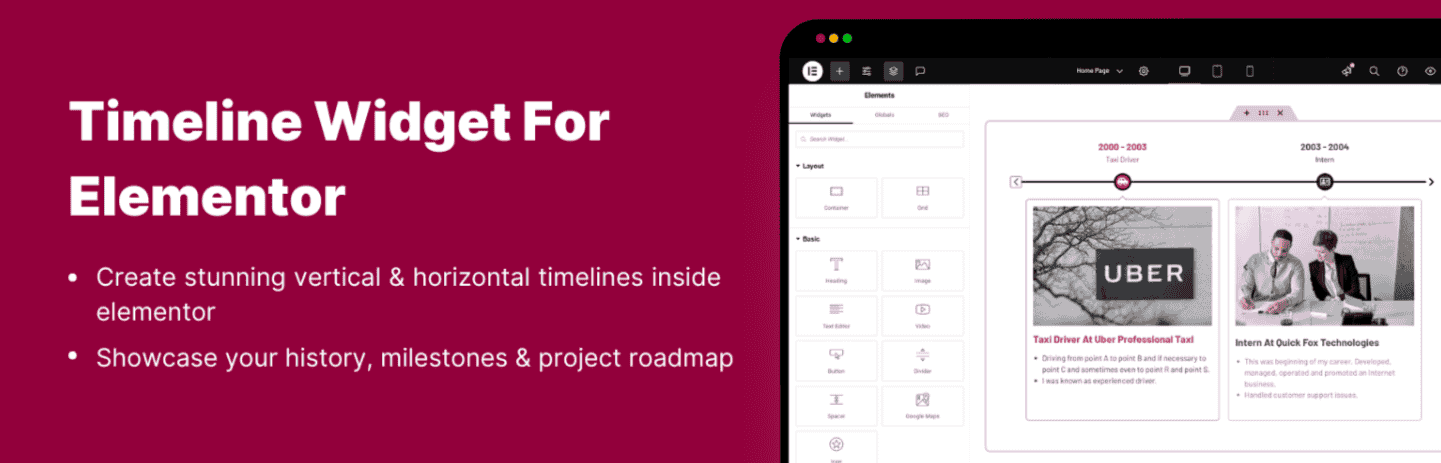
Timeline Widget for Elementor is a timeline plugin that adds a dedicated Story Timeline Widget to the Elementor editor.
You can use it to present company history, achievements, personal journeys, product roadmaps, events, and other chronological information.
With the plugin, you can display information in vertical or horizontal timeline layouts, and add custom dates, labels, titles, descriptions, icons, and images to your stories.
The plugin also provides styling options to customize the timeline according to your website design.
Now, let’s follow the steps below to create a timeline using the Timeline Widget for Elementor.
Step-by-Step Guide to Create a Timeline
To create a Timeline, make sure to install and activate the following:
Once both plugins are active, follow these steps:
- Open the Elementor Page where you want to add a timeline.
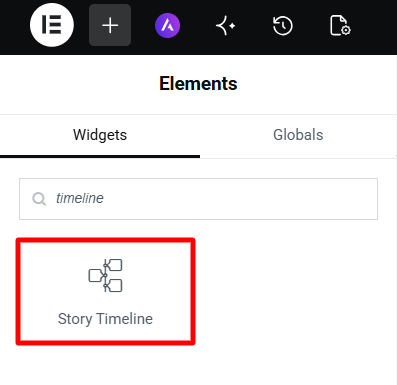
- From the Elementor widget panel, search “Story Timeline” and drag the widget to your page.
- A default timeline structure will appear on your page.
- Replace the default content with your own content by using the following settings:
Content Settings
In the content settings tab, you will find the two main sections:
- Timeline Stories
- Layout Settings
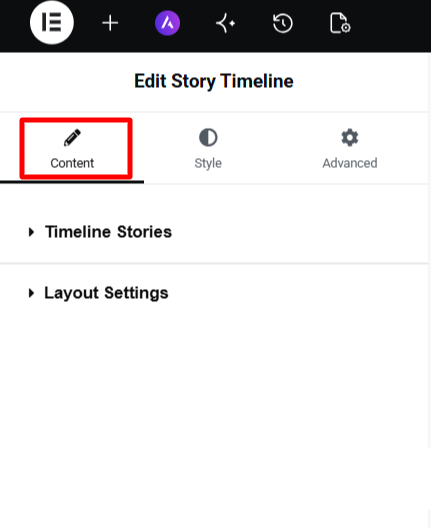
- Timeline Stories: The Timeline Stories section lets you customize individual stories.
- From Content Settings, you can customize:
- Year / Label: Show or hide the year or label displayed with the story.
- Year / Label Text: Add the main year or label for your story.
- Label / Date: Add a date or short label for the story.
- Sub Label: Add supporting text to your story, such as ‘Launched’, ‘Founded ’, etc.
- Title: Enter the title of your timeline story.
- Description: Add a short description explaining the story.
- Media: Add an image to your story.
- From Advanced Settings, you can choose the Icon you want to display with each story.
- Similarly, you can customize the other timeline stories.
- To add a new story box, click “Add New Item”.
- From Content Settings, you can customize:
- Layout Settings: From the Layout Settings section, you can customize the following:
- Layout: Select Vertical or Horizontal layouts for your timeline.
- Content Alignment: Align your story content to the left, center, or right.
- Label Position: Adjust the position of timeline labels.
Style Settings
To change the design of your entire story timeline, use the following Style settings:
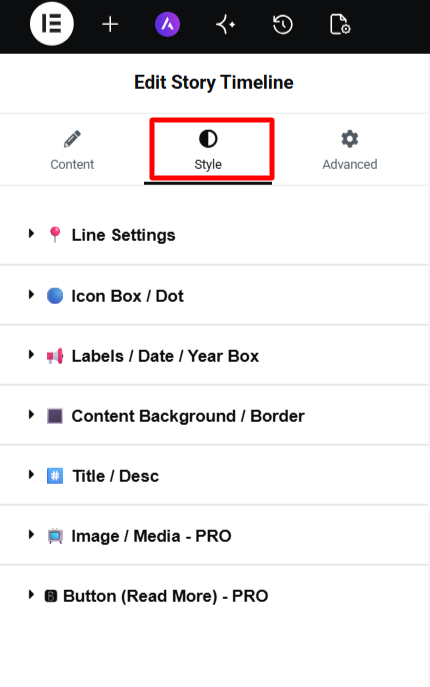
- Line Settings: Customize the color of the line that connects your timeline stories.
- Icon Box / Dot: Set the background color of the icon box and choose the color for your icon.
- Label / Date / Year Box: Customize the color, typography, and size of the label, date, and year box.
- Content Background / Border: Set the story box margins, spacing between the stories, background color, border color, and width of the story container.
- Title / Desc: Customize the color, typography, and spacing of your story title and description.
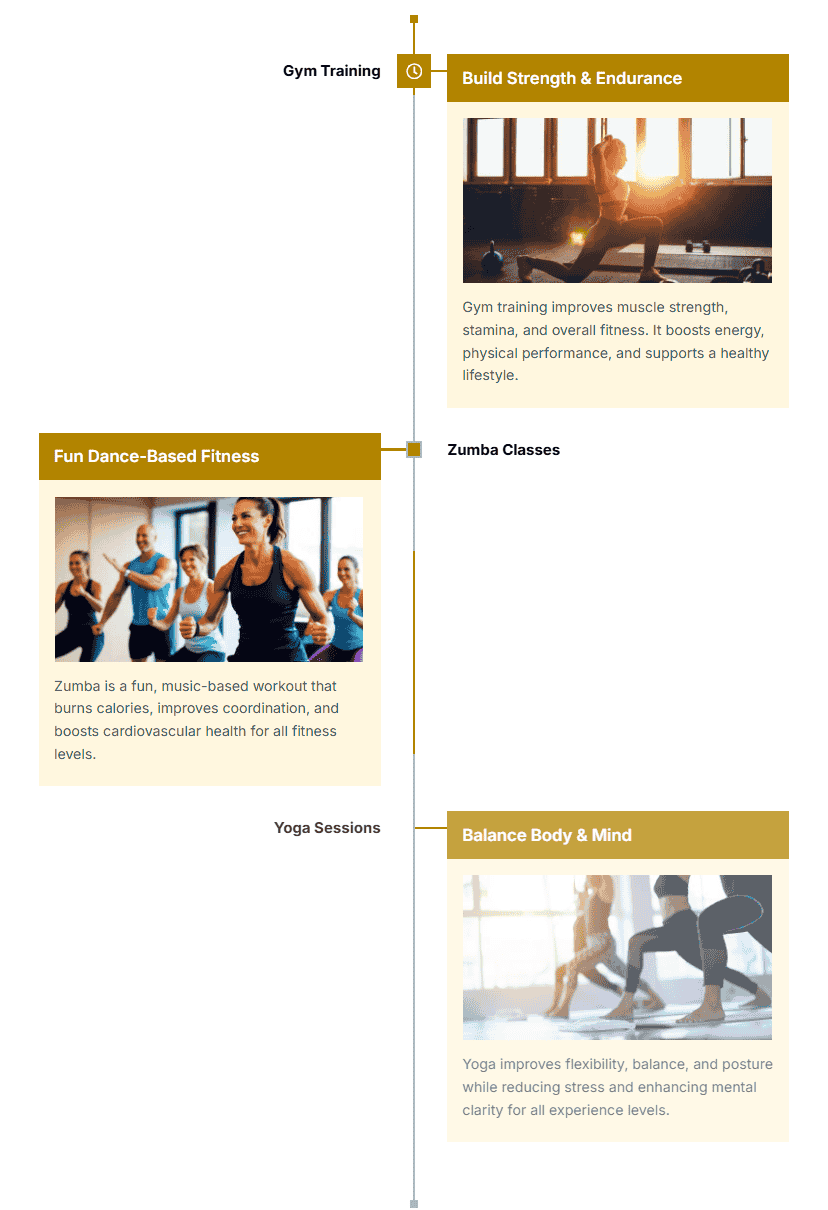
Once you have created all your stories and are satisfied with the customization, preview and publish the timeline. Here is a demo timeline:
Extend Your Timelines with Timeline Widget Pro
The Timeline Widget for Elementor (free) provides the essential features you need to create and customize Story Timelines.
However, if you also need dedicated Post Timeline and Process Steps widgets, along with multiple layouts and ready-made styles, you can use Timeline Widget Pro.
The Pro version offers more customization, like Read More buttons, custom button text and links, individual story color settings, animations, navigation, and advanced styling controls.
For a complete overview of these features and their settings, explore the Timeline Widget for Elementor Pro documentation.
Final Thoughts
A timeline is a simple way to present important information in an organized and engaging format.
For most websites, Timeline Widget for Elementor Free provides enough features to create and customize a useful story timeline. You get both vertical and horizontal layouts with essential content and styling settings.
If your timeline requirements are more specific and you need additional customization, then you can consider Timeline Widget Pro.
FAQs
Does Elementor have a timeline widget?
No. Elementor does not include a dedicated timeline widget by default. You can use an addon like Timeline Widget for Elementor to add and customize Timelines directly inside the Elementor editor.
Is Timeline Widget for Elementor free?
Yes. Timeline Widget for Elementor is a free addon that you can use to create Story Timelines directly inside the Elementor editor.
What widget does the Timeline Widget for Elementor add?
The plugin adds a dedicated Story Timeline Widget to Elementor. You can use it to create company history, milestones, achievements, personal journeys, events, and other chronological content.
Can I create both vertical and horizontal timelines in Elementor?
Yes, you can. Timeline Widget for Elementor supports both vertical and horizontal Story Timeline layouts, so you can choose the format that works best for your page.
Can I customize individual timeline stories?
Yes. You can customize individual stories by adding dates or labels, titles, descriptions, icons, and images. You can also choose the icon for each story.
Can I customize the overall timeline design?
Yes. You can customize the timeline line, icon box, labels, story background and borders, titles, descriptions, typography, colors, and spacing to match your website.
Where can I use a timeline in Elementor?
You can use a timeline on About Us pages, Home pages, company history pages, portfolio pages, and other Elementor pages.
What features are available in Timeline Widget Pro?
Timeline Widget Pro adds Post Timeline, Process Steps, additional layouts, ready-made styles, animations, navigation, and advanced customization options.