Cool Timeline allows you to display your timelines inside pages, posts, or even widgets using shortcodes without needing to use any third-party blocks.
What is Timeline Shortcode?
A shortcode is a simple code snippet that you can insert into your WordPress posts, pages, or widgets to display timelines. Think of it as a command that tells WordPress, “show my timeline here in this style, with these specific settings.
Add Timeline Shortcode in Classic Editor
If you are using the Classic Editor, follow these steps to add your timeline:
- Open your page/post in Classic Editor.
- Click on the Add Timeline button in the toolbar (as shown in the editor screenshot).
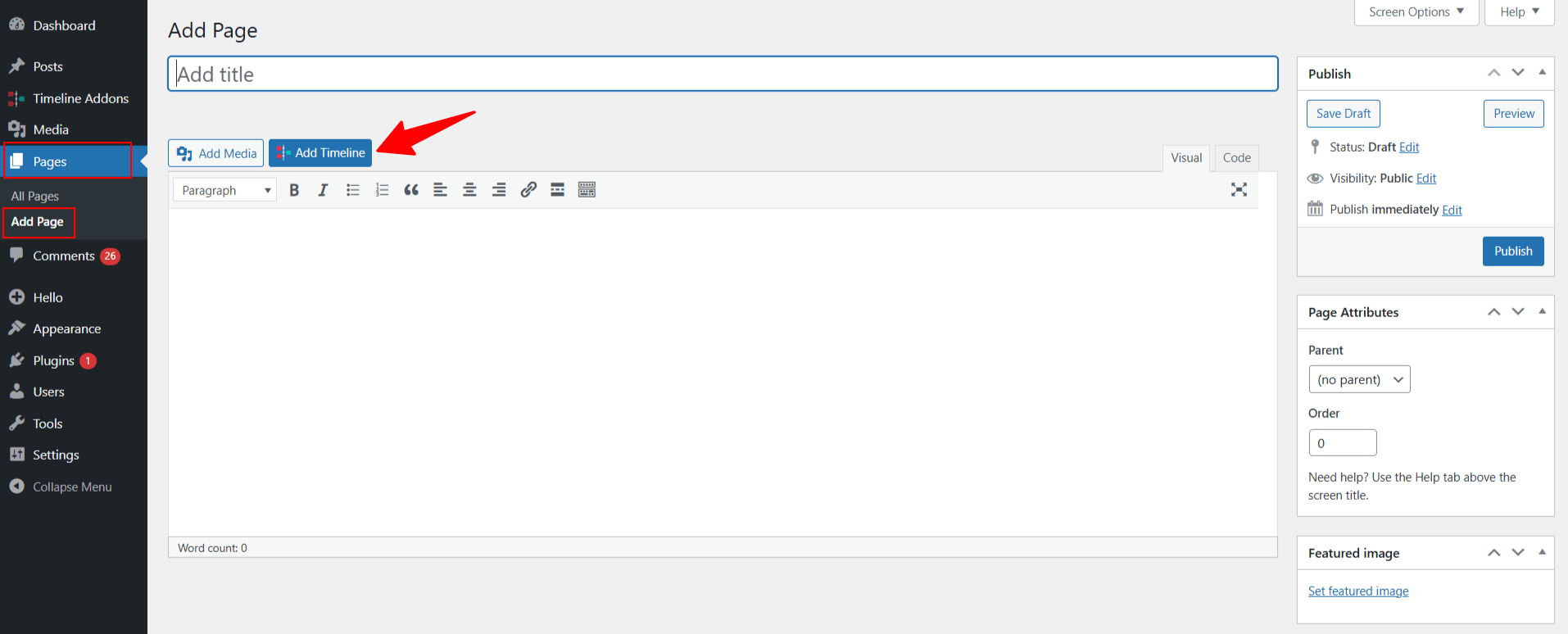
- A pop-up will appear with the available timeline settings.
- Configure the timeline according to your requirements.
- Once you are satisfied with the settings, click Insert Shortcode.
- The timeline shortcode will now be added to your page or post.
Add Timeline Shortcode in Gutenberg
If you are using the Gutenberg Block Editor, you can add your timeline using the Story Timeline Shortcode block.
- Open any page or post in the Gutenberg editor.
- Click on the “+” Add Block button.
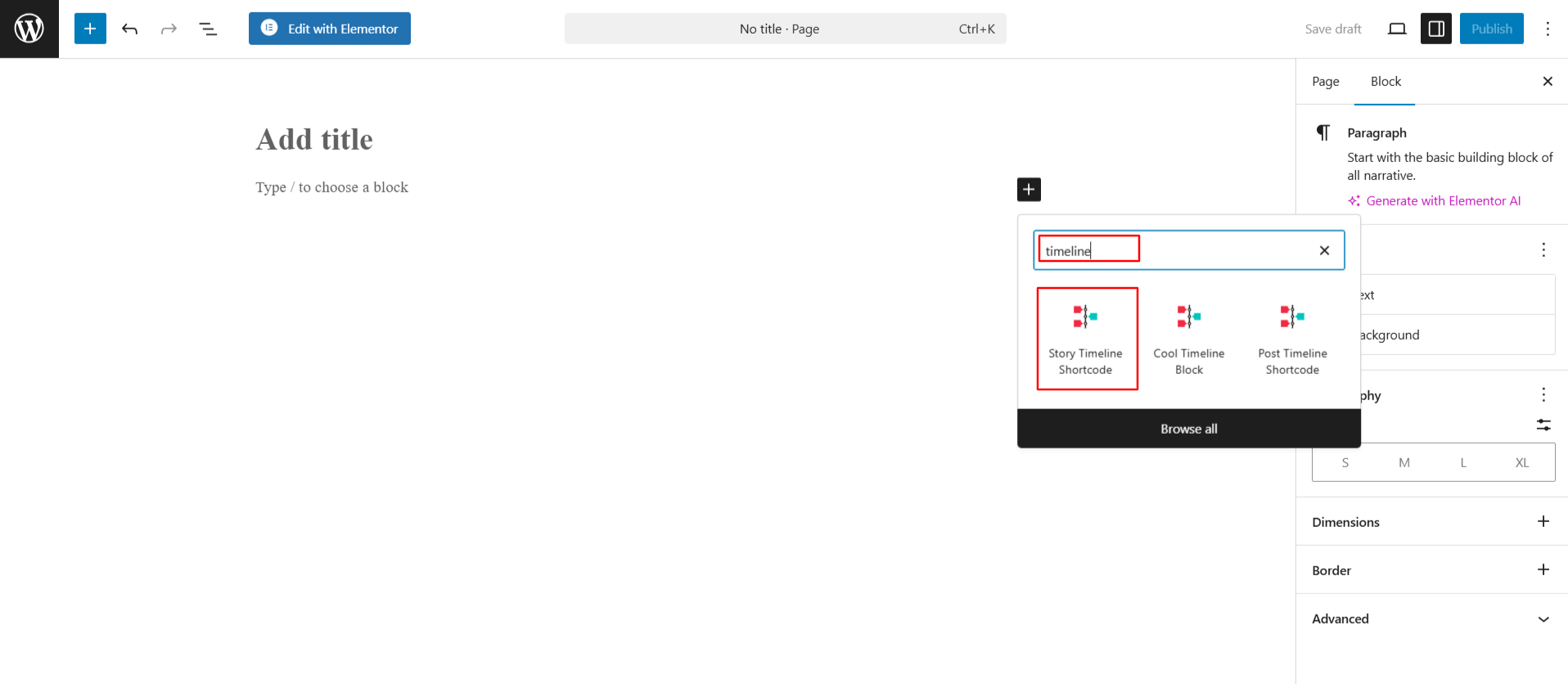
- Search for “Timeline” and select the Story Timeline Shortcode.
- The shortcode will be added to your page.
- Configure the available options according to your requirements.
- Once you are satisfied, publish or update the page.
Shortcode Attributes
Now, you can customize your shortcode using the following shortcode attributes:
| Shortcode Attribute/Settings | Default Value | Available Options | Description |
| Timeline Categories | category=”timeline-stories” | All Dynamic Categories List | Display stories from a specific category, or by default, all categories are shown. |
| Timeline Layouts | layout=”default” | Default Vertical Timeline Horizontal Timeline One-side Timeline Compact Timeline | Choose the timeline layout from Vertical, Horizontal, One-sided, and Compact layout. |
| Timeline Designs | designs=”default” | Default Flat Design Classic Design Elegant Design Clean Design Modern Design Minimal Design Simple Design | Select your preferred timeline design style. Each design gives a different visual look to your timeline. |
| Timeline skins | skin=”default” | Default Dark Light | Change the color theme of your timeline. You can use light, dark, or the default color style. |
| Date Formats | date-format=”default” | F j January 1 (F j) F j Y January 1 2019 (F j Y) Y-m-d 2019-01-01 (Y-m-d) m/d/Y 01/01/2019 (m/d/Y) d/m/Y 01/01/2019 (d/m/Y) F j Y g:i A January 1 2019 11:10 AM (F j Y g:i A) Y 2019(Y) Custom | Choose how dates appear in your stories. You can also use your own custom date format. |
| Timeline Based On | based=”default” | Default Custom | Select whether your timeline is based on story dates or custom order. |
| Stories Per Page | show-posts=”10″ | 1-50 | Set how many stories to display per page. Pagination appears after this number. |
| Pagination Settings | pagination=”default” | Off Ajax Load More | Choose your pagination type: “off” to disable pagination or “ajax-load-more” to load more stories with AJAX. |
| Icons | icons=”NO” | No Yes | Show or hide icons in timeline stories. By default, a simple dot is shown. |
| Stories Description | story-content=”short” | Short Full | Show a short description or full story content (with HTML). |
| Stories Order | order=”DESC” | DESC ASC | Arrange your timeline stories in ascending or descending order. |
| Category Filters Settings | filters=”no” | No Yes | Enable or disable category filters on your timeline. |
| Compact Layout | Date&Title position compact-ele-pos=”main-date” | On top date/label below title On top title below date/label | (Only for Compact Layout) Choose the position of the date and title: main-date = date on top, title below; main-title = title on top, date below. |
| Animation | animation=”none” | None zoom-in fade flip-right zoom-out fade-up fade-down fade-left fade-right fade-up-right fade-up-left fade-down-right fade-down-left flip-up flip-down flip-left slide-up slide-left slide-right flip-left zoom-in-up zoom-in-down slide-down zoom-in-left zoom-in-right zoom-out-up zoom-out-down zoom-out-left zoom-out-right | Add Animations Effect Inside Timeline. |